Exploring and Modernizing The VFX Methods of Diablo 3
By Nick Seavert
- Time To Read: ~35-45 Minutes
- Last Updated: Monday, March 2nd, 2026
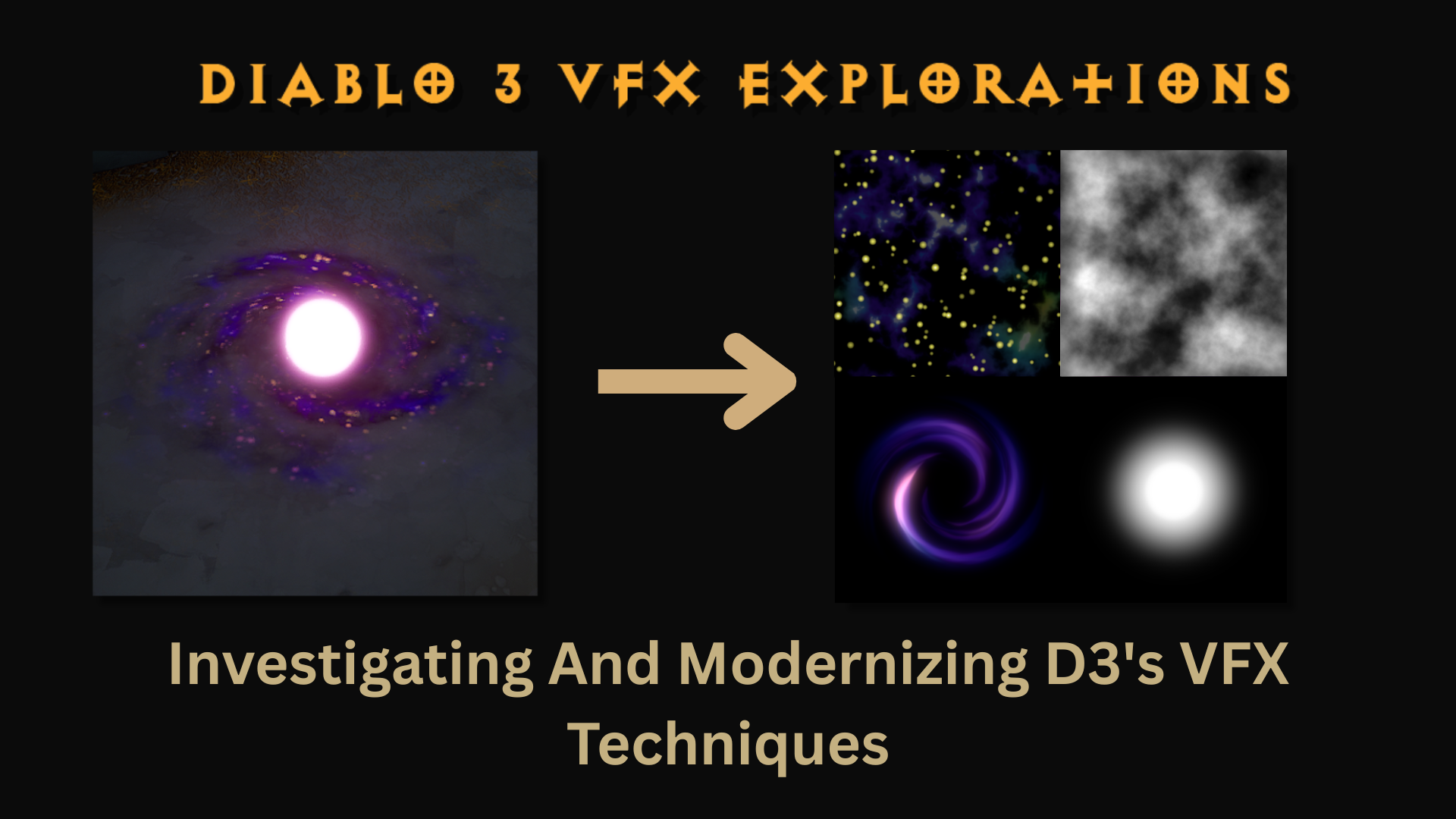
IlluGen Project Files Related To This Article Can Be Downloaded Here:
Introduction
One of the most influential videos I’ve ever watched for creating VFX in Games is Julian Love’s presentation at GDC 2013 about the VFX and tech art in Diablo 3. In his talk, Julian discusses everything from working with designers to ensure effects match gameplay, to the considerations you need to think about as an artist when conveying visual information to players. What I and many other artists who have watched the presentation found most interesting was how using a very simple formula,Texture 1.alpha * Texture 2.alpha * 2, can give you endlessly interesting motion that’s hard to spot a discernable repeating pattern. When using something like a flipbook, you can usually spot the repeating pattern after staring at it for long enough. In visual effects its sort of our duty to make our effects as mesmerizing to look at as a camp fire in real life, and most looping effects probably deserve this level of treatment and craft. As Julian put it, you just need to be able to space out when looking at an effect.
I do think the presentation and explanation of using this method for achieving motion is incredible, however when attempting to implement this you may find that there are a few gotchas that you weren’t expecting. Its just multiplication, right? Not quite. If you haven’t watched the GDC talk, I would highly recommend it, though I will try to do my best to convey the information without you being lost if you haven’t watched it. I’ve had the benefit of being able to speak with Julian while writing this article, so I have additional insights directly from the person a lot of us have looked up to. When I tried to use D3’s VFX methods in unreal, it did not work out of the box and the trouble this caused is in part why I’m writing this article. As a final preface, any image or video below that has the yellow Diablo style text is content from the GDC talk slides and I’m using this in a fair use environment for educational and commentary purposes. Thank you Blizzard for sharing this with all of us so long ago! With all of that in mind, lets dive in!
How It All Begins: ((Tex1.A * Tex2.A * 2) * Tex3.A * 2) * Tex4.A
In Fig. 1 we see 4 textures on the left. Textures 1, 2, and 3 are all the same noise texture, but the UV’s are scaled differently for each scrolling layer. Texture 4 is a soft mask used to give the scrolling noise a defined shape. Notice that in this case RGB channels are a solid white where as alpha ultimately determines the brightness and opacity of RGB. You’ll also see that in some areas we get fully blown out morphing white shapes and this is desirable when pairing it with real colored inputs. The result of these 4 multiplied textures is then applied to just 7 particles on the right, which results in a lot of complex motion.
Note: The position and scroll speed of each layer of textures is randomized per particle to prevent phasing and pattern recognition.
Fig. 1 - The 7 particles on the right sure do have a lot of interesting motion!
Creating The Textures In IlluGen
To create the noise and alpha shape mask textures from Fig. 1, we’re going to be using IlluGen. To explore how noise shapes affect motion we’ll pack different types of noise in the RGB channels of our texture sample. Throughout the GDC presentation, because they actually utilize a color channel along with the alpha channel, channel packing may or may not be possible for things like noise as we continue trying things out.
In Fig. 2 we create 3 unique noise types then auto-level them and adjust things artistically until satisfied. For the smoke alpha channel you’ll see in Fig. 3 that we blur the end result as I’ve found this works better as mask. If your mask is too detailed you will see static detail as your morphing noise passes over it and this is undesirable for most things.
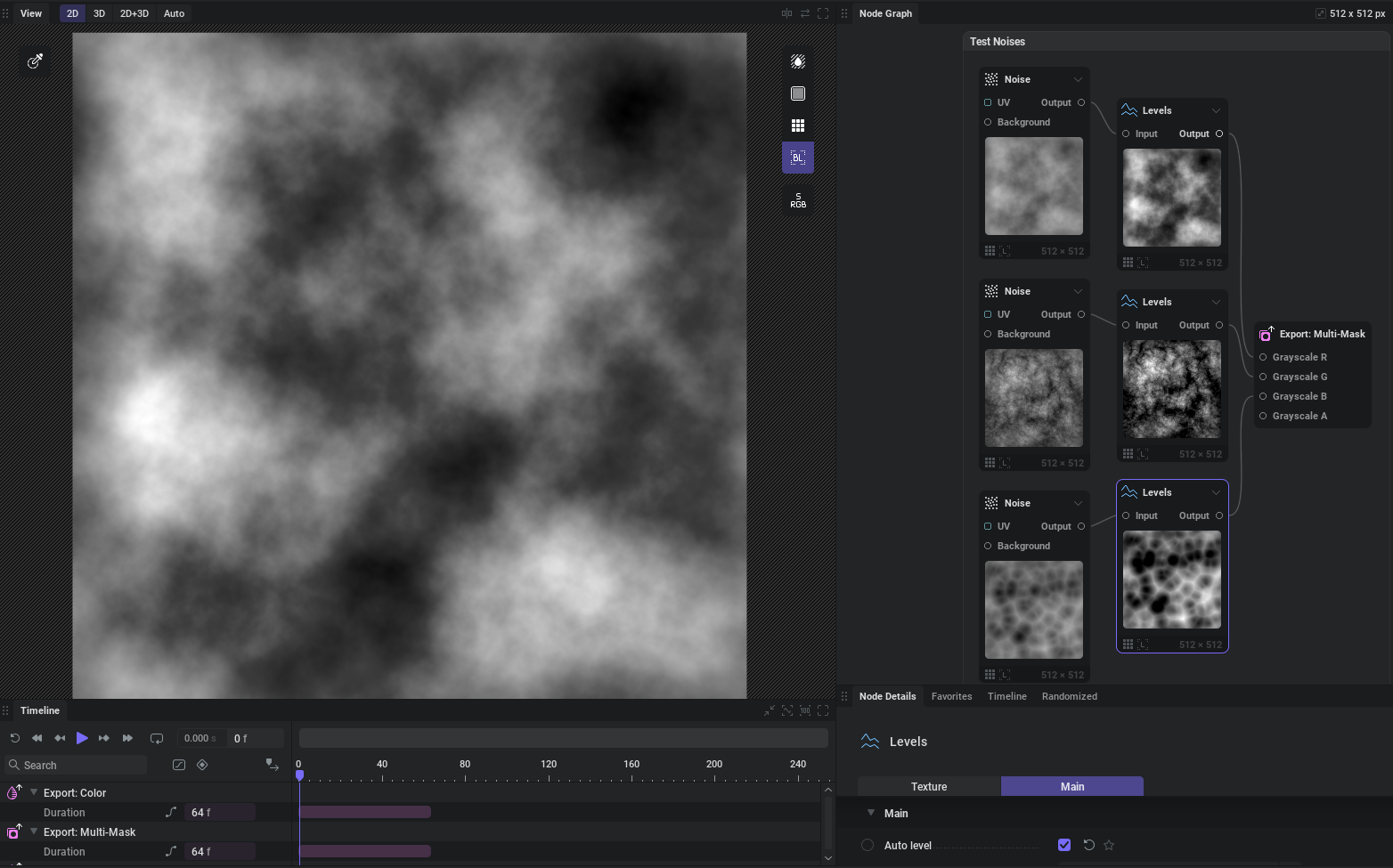
Fig. 2 - Experimental Noises: Perlin Noise, Shard with Billow blending, and Voronoi with F1 result.
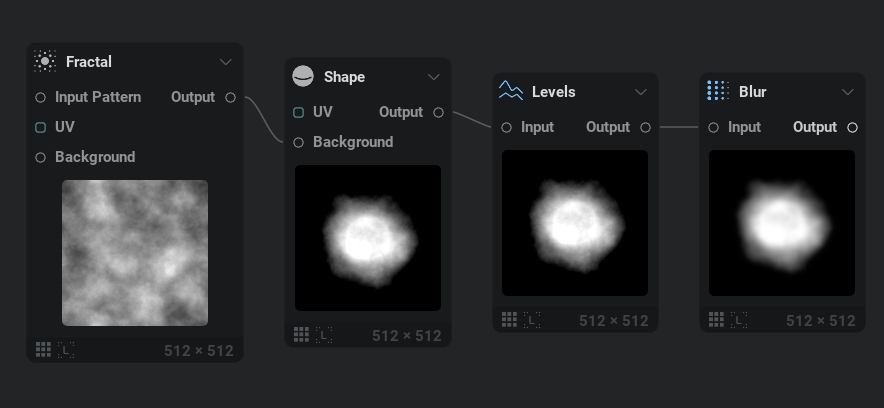
Fig. 3 - Smoke alpha channel.
Creating The Shader Material In Unreal
We then export our textures to Unreal and create our scrolling material. To start with our material in Fig. 4 we’re using a translucent unlit shading model in our material with a white RGB input into emissive. TheTex4.A comment box contains our smoke mask and an RGB gradient we will be using later in our explorations. Before Tex4.A is multiplied in, we see a Scale by Mids function. One thing that wasn’t mentioned in the D3 talk was that in a lot of cases it is necessary to have control over the midlevel range in your texture for this to work across the board for your VFX.
I had a brief conversation with Julian when troubleshooting my own D3 inspired implementation and in many cases to ensure that the desired motion was achieved, he mentioned that you need a function that can scale mid ranged colors to either additive or subtractive effect. We’ll touch more on this in a bit, but I built a function which scales the range of a grayscale texture from middle gray to allow you to tweak the coverage area and value differences of your motion. In my conversation with Julian he had this to say; “The more you multiply, the more you want to constrain the range of your noise. I built a function called Scale by Mids, which scales the range of a grayscale texture from middle gray. Once you have a lot of black in your texture, it eats up a lot of action.”
One thing I did not ask for clarification on was if the Scale by Mids function should be done a per texture basis. I chose to do it at the end of all alpha multiplication but would encourage you to experiment. Later on in this article, I do indeed end up experimenting with the placement of this function.
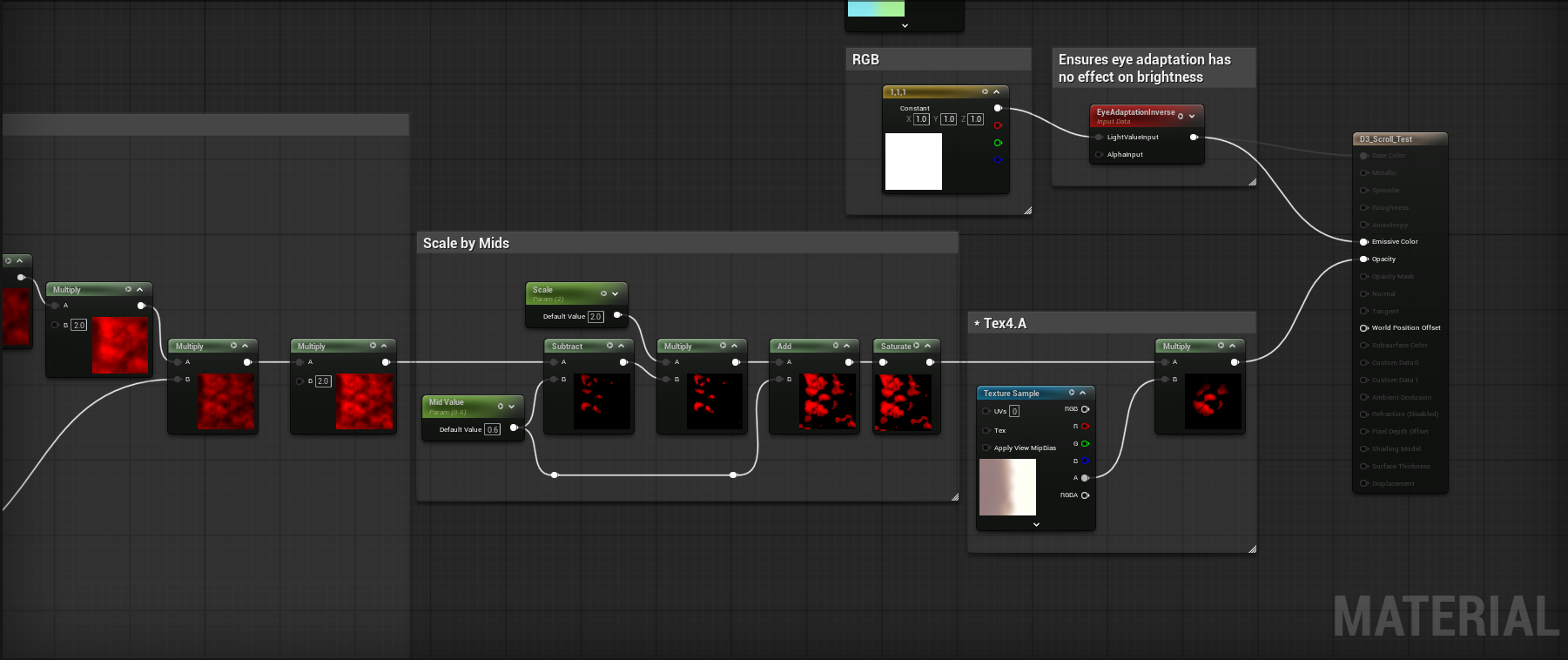
Fig. 4 - Part 1 of our scrolling material.
Next up is the heart of the implementation, where we randomize the texture position and scroll speed per particle. You can do this a number of ways, such as with adynamic parameter and controlling variables per particle in Niagara, but I chose to do a purely material based option and as such chose to use the Particle Random Value node. I have heard that the Particle Random Value node only works on GPU particles, but I have not found this to be the case and that seems untrue, at least in UE5.7.
I discovered that when setting panner speeds you want to clamp your values to something greater than zero and a max of 1. Without it, you can have some particle instances scrolling too slow and the effect of seamless cohesive motion can be broken. The texture coordinates from top to bottom go from 0.5, 1.0, and 2.0 in terms of UV scale. Moving over to ((Tex1.A * Tex2.A * 2) * Tex3.A * 2) should be self explanatory as we are simply multiplying the textures together to blend their motion. The final multiply in our graph in Fig. 5 plugs in to the A pin of the subtract node in our Scale by Mids function.
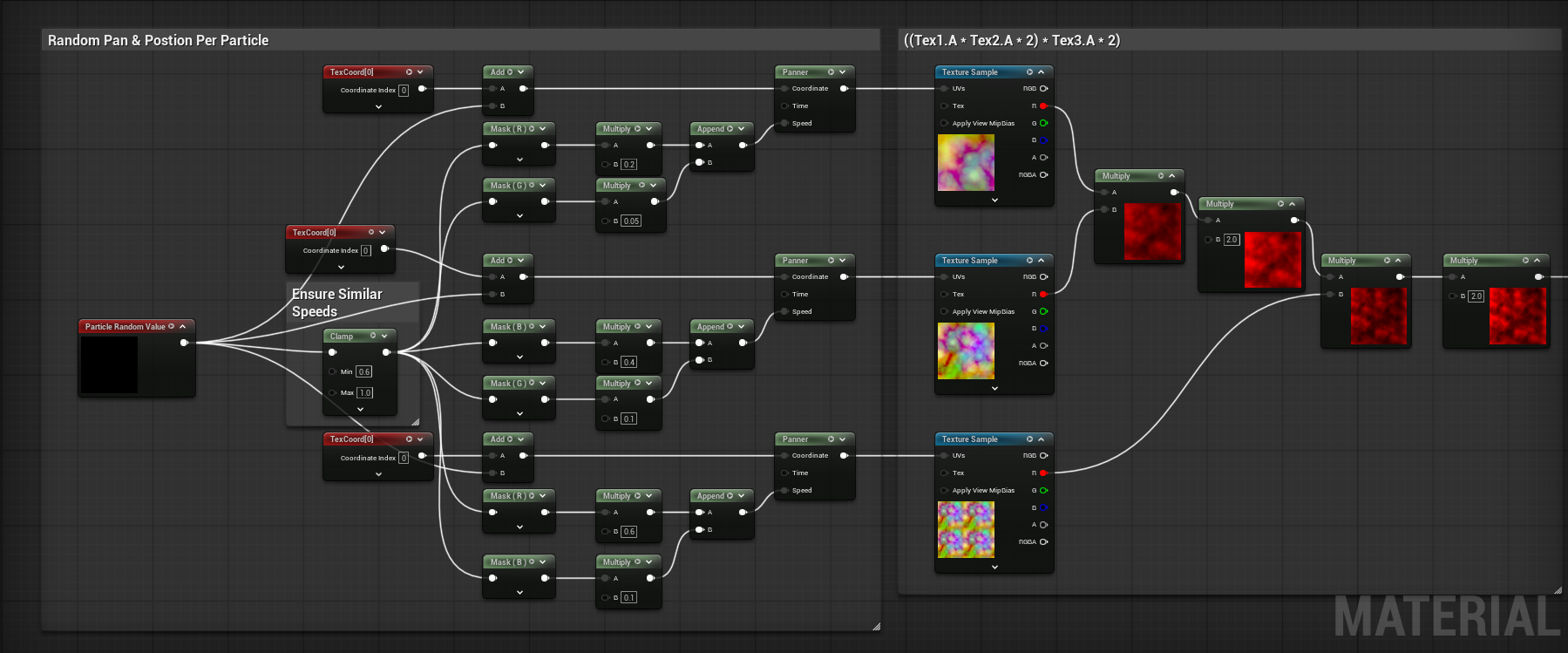
Fig. 5 - Part 2 of our scrolling material.
Creating Particles In Niagara
After throwing our material onto 7 particles that were spawned with Niagara as seen in Fig. 6, it looks like we’ve come pretty close to the D3 Example in Fig. 1.
Fig. 6 - Our attempt to recreate Fig 1. is a success!
Lets see how the other two noises we created in IlluGen look since we’ve had some success. In Fig. 7 The shard noise doesn’t look too bad, but the Voronoi Noise looks a bit worse than anticipated. The reason why will become clear in our common issues section.
Fig. 7 - Motion of noises 2 and 3 from our packed texture, shown on 7 particles.
Common Issues I’ve Run Into
In my opinion, there are three types of results that you don’t want: The illusion of morphing motion being broken by improper scroll speeds, phasing textures by having imprecise octaves, and black eating all of your motion because you don’t have enough mid values around the shape edges.
Common Issue #1: Incompatible Scroll Speeds
Fig. 8 - On the left, a wide range of scroll speeds breaks the illusion of ever morphing motion and reveals the truth that these are just 2 panning textures.
Improper scroll speeds as seen on the left can break the illusion of a texture that is morphing over time and can cause it to look like what it really is, two textures scrolling past each other. On the right we have similar scroll speeds which allows us to capture the morphing look we’re going for. When you have two particle sprites over each other, if their randomized scroll speeds are too different, you can also have this issue occur. For this reason, we added the clamp node to our random particle value in our material to ensure a minimum scroll speed is maintained across all particles.
Common Issue #2: Imprecise Octaves Phasing
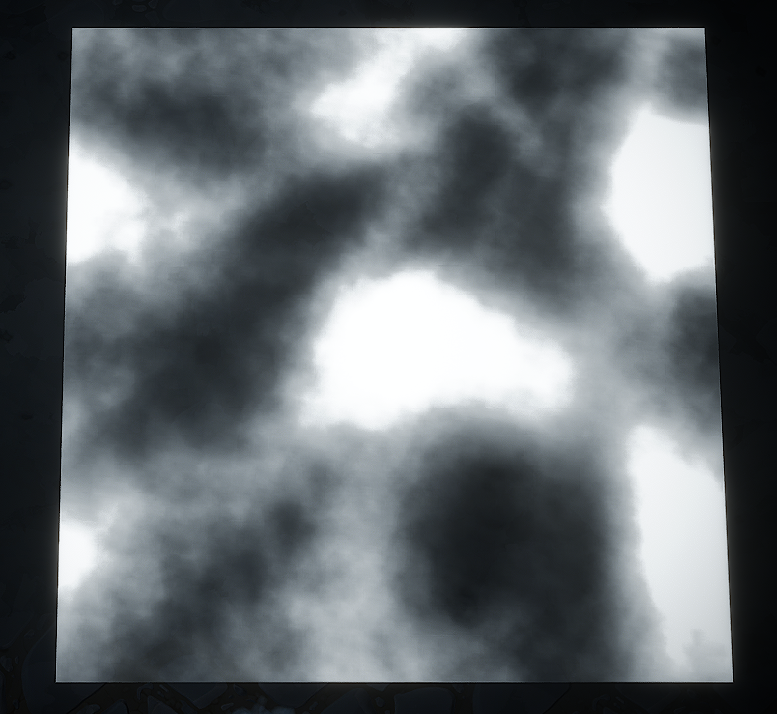
Fig. 9 - UV sizes of .8, 1.0, and 1.2 eventually meet and cause a range of phasing and pulsing issues.
Using octave sizes for your texture coordinates like .25, 0.5, 1.0, 2.0 and so on are all variables derived from diving the successor number by 2. Using an octave size set such as .8, 1.0, and 1.2 can create phasing issues as seen in the image in Fig. 9. Don’t fall victim to this!
Common Issue #3: Not Enough Color Range In Your Texture
Fig. 10 - Not having enough mid range value can limit the textures ability to evolve naturally.
Similar to Issue #1, not providing enough color range in your noises shapes can greatly affect the motion you get and cause it to be impossible to fix, even with aScale by Mids function. Notice how on the left hand side of Fig. 10, if you look in center it almost looks like the large black void is simply panning across the texture, which breaks the illusion of ever morphing motion. This is the same reason our Voronoi example in Fig. 7 looked good, but not great.
Color: Blend-Add, Alpha Composite, Pre-multiplied Alpha, It's All The Same
Because this method works great for creating motion in our alpha channel, it’ll work great for color as well. To apply what we’ve learned, we’re going to be recreating the Arcane Orb shown below in Fig. 12 to explore using colors. Before we do that, lets discuss the “Blend-Add”, or as Unreal calls it,Alpha Composite. From my research I do believe its also the same thing as pre-multiplied alpha, and alpha blending modes are a very complicated subject so we’ll tread lightly.
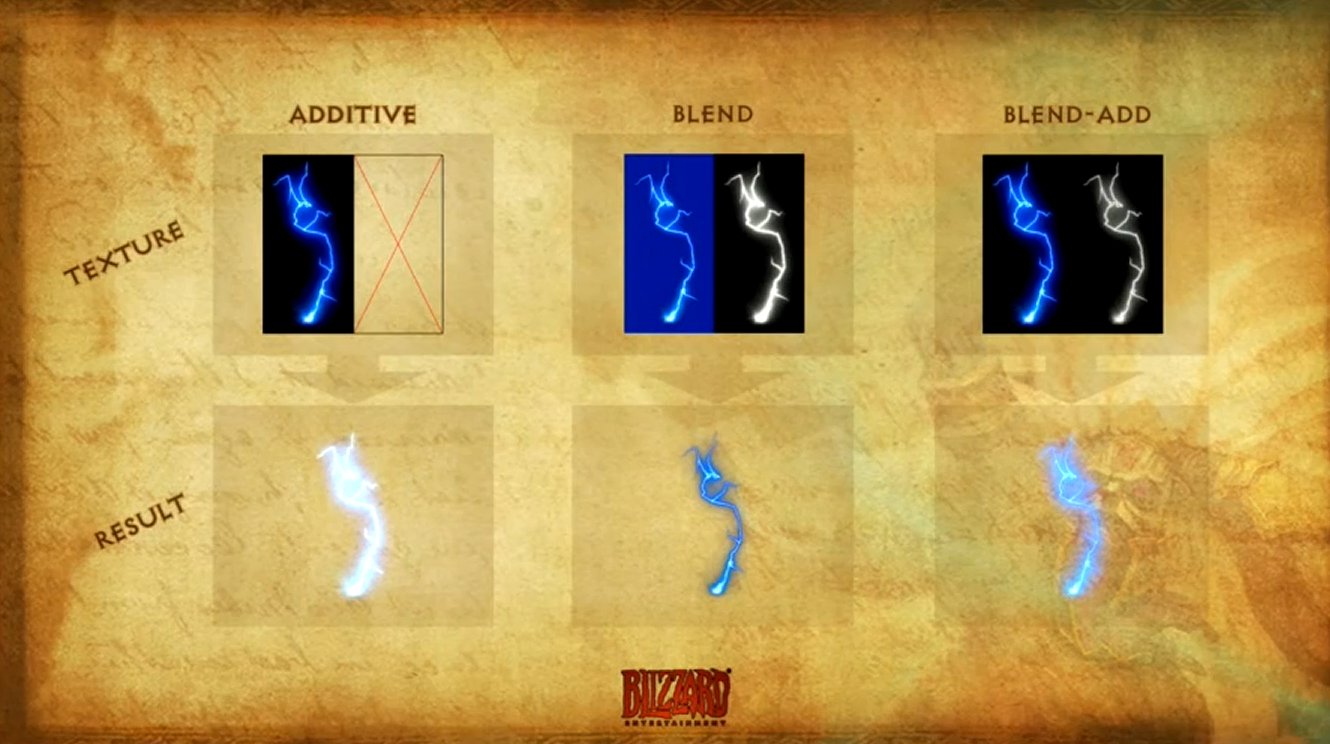
Fig. 11 - A slide from the GDC talk showing the differences between additive, blend (Translucent in UE I believe), and blend-add (Alpha Composite).
If you want to read up more onAlpha Composite in UE or Unity, I would recommend reading this article by Martin Ellis. The gist is that when all the spells in Diablo are going off, if you used additive blending for your VFX, everything would eventually become one large mass of white due the vast amount of spells on screen. Using Blend (Translucent) doesn’t really allow you to make something pop as strongly emissive as additive. Blend-Add (Alpha Composite) essentially places a black background behind the emissive part that you want to render, helping it stand out more in a scene with a lot of things happening at once.
The drawback of Alpha Composite is that if you are building an effect that has custom colored noises with corresponding alpha channels, something like texture packing may not be as viable of an option for you. Sure, you can use gradients in engine on a grayscale texture, but as we’ll see in my arcane orb example, texture packing was not possible because of the vast color differences in the texture.
In cases where you may have smoke, fog, and other non-bright items, I do not think there is much benefit to using alpha composite blending and I think it should be reserved for effects where emissive shading plays a key role.
Recreating the Arcane Orb From Diablo 3
Fig. 12 - Diablo 3 Arcane Orb as seen in the GDC Talk
This effect stood out to me due to the vast amount of motion it has for such a simple set of textures. So to get started, lets hop into IlluGen and create the galaxy spiral texture (TEX1 in Fig. 12). The gist is we will use theCartesian to Polar node in Fig. 13 with a diagonal striped noise to create our spiral shape. From there we can add color and use a Directional Blur node to remove the seam created by the Cartesian to Polar node. One great thing about IlluGen’s Directional Blur node is that when inputting a color, you get access to a Chroma Shift parameter which I used to make the colors pop just a little more in my final texture.
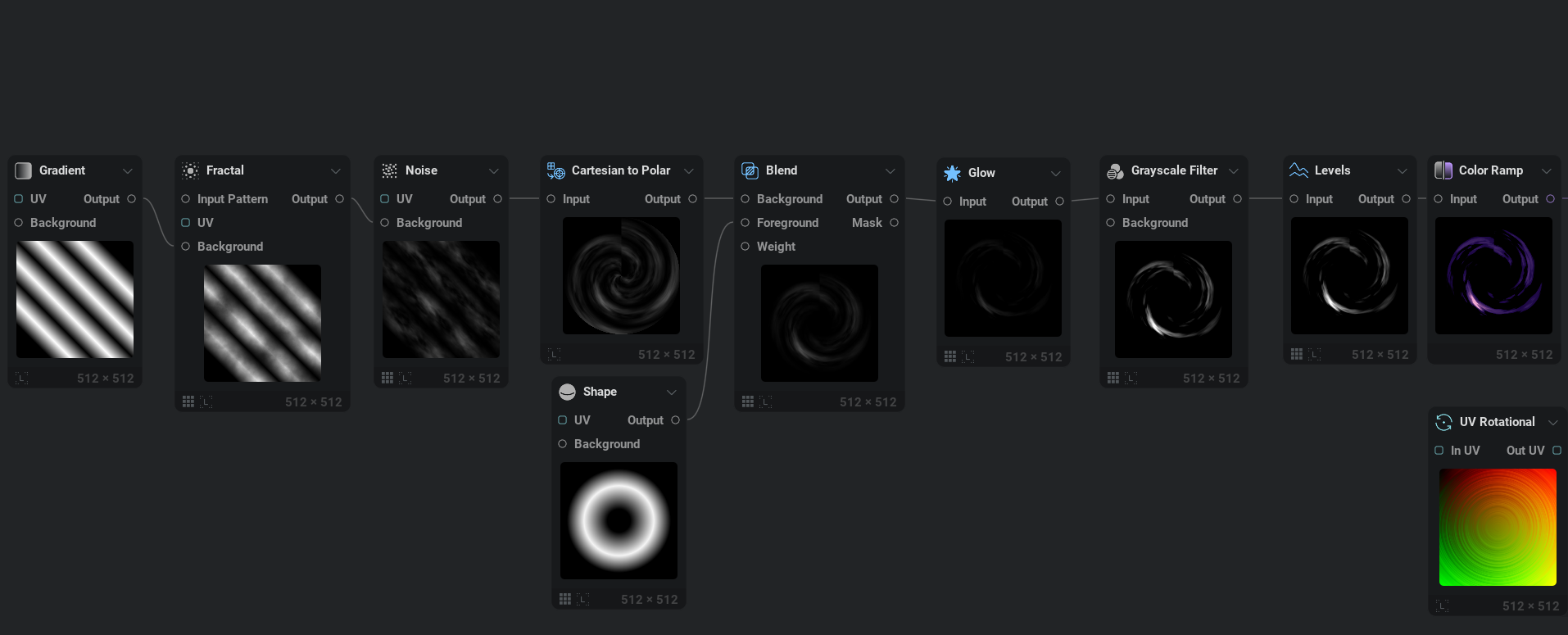
Fig. 13 - Cartesian to Polar is the primary driver that gives us our spiral shape.
Finally, in Fig. 14 we create an alpha channel and merge it in withAlpha Merge. You’ll notice that our alpha channel has a smokey/fiery noise baked over the spiral shape. I did this because with Alpha Composite you get to dictate where both color and black can appear and in the reference the spiral seems to have a hazy smoke effect outside of the spirals range of influence.
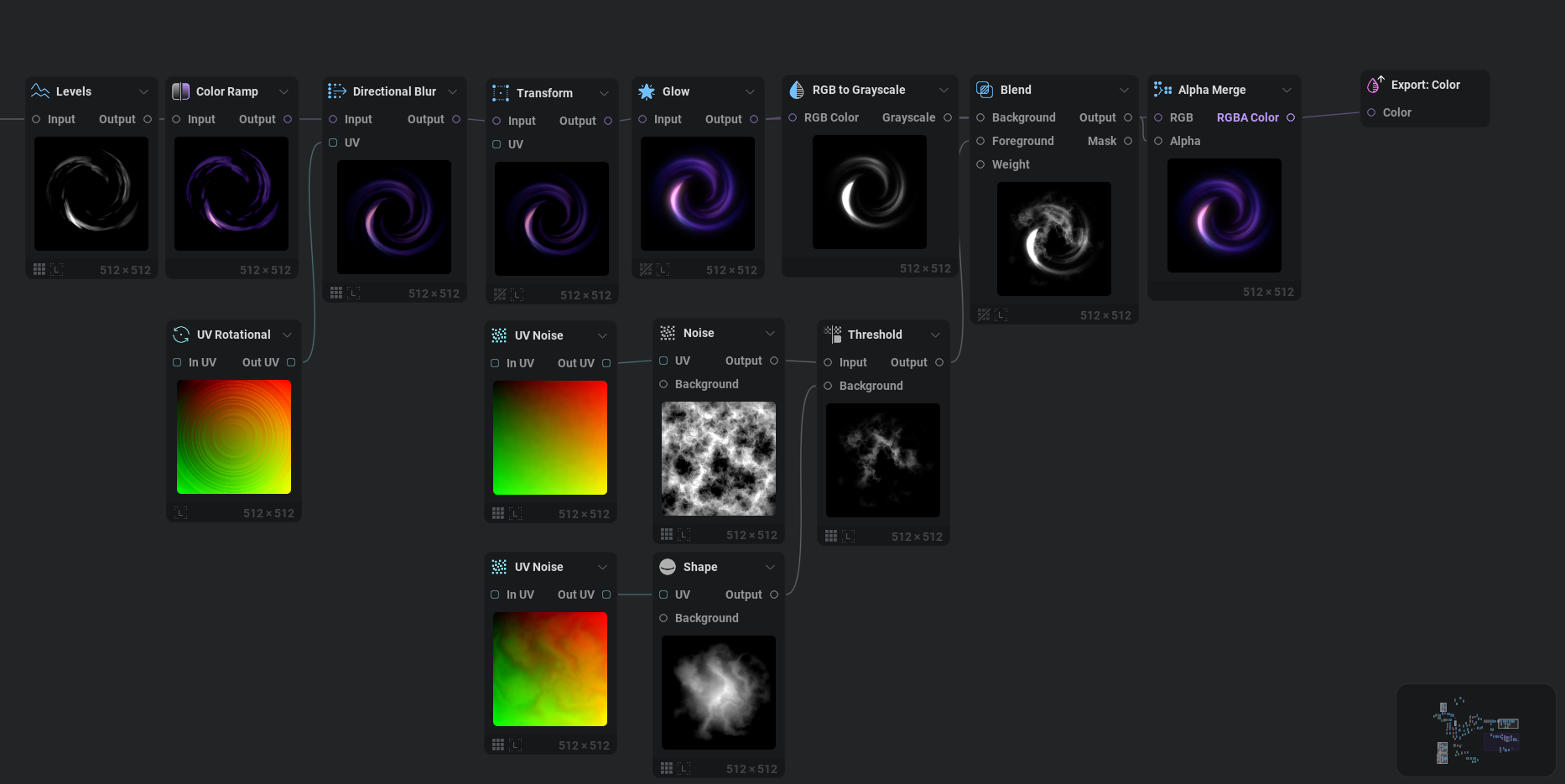
Fig. 14 - Directional blur paired with a UV Rotational allows us to remove our seam generated when using Cartesian to Polar.
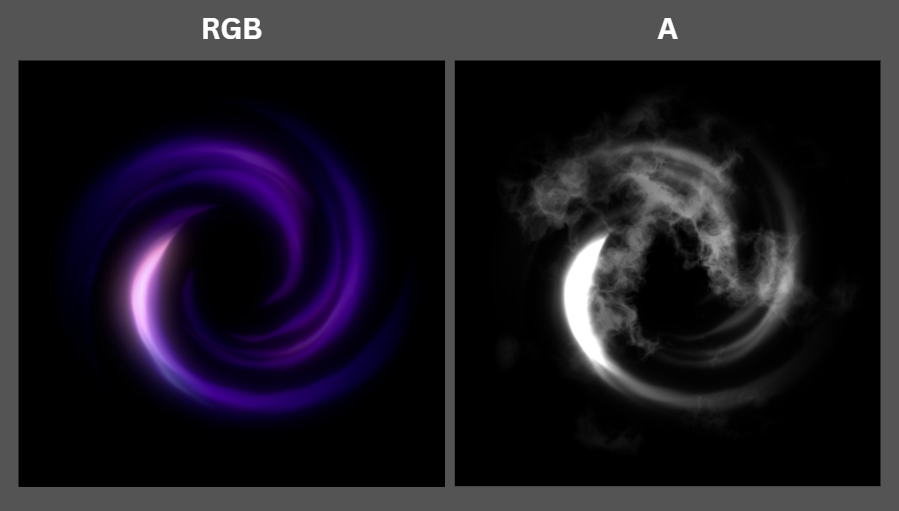
Fig. 15 - Final RGB and A texture channels for our spiral texture.
If you look back atTEX1 in Fig. 12 you’ll see that the spiral texture for our reference doesn’t actually have an alpha channel. So what gives? No clue, but my hunch is there is additional masking happening in D3, but they just don’t tell us that. In Unreal there isn’t a way to isolate the spiral mask without having an alpha channel for the overall spiral shape, see Fig. 16. Without including an alpha channel in the spiral and using it in our material, Fig. 17, we get hard edges caused by the panning noise hitting the edge of the sprite.
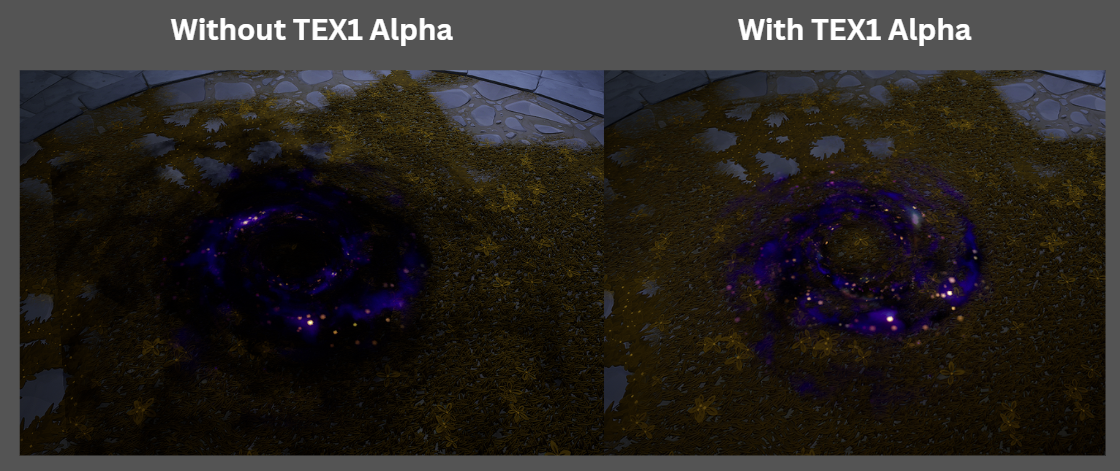
Fig. 16 - With and without TEX1 alpha being used in the materials final shader.
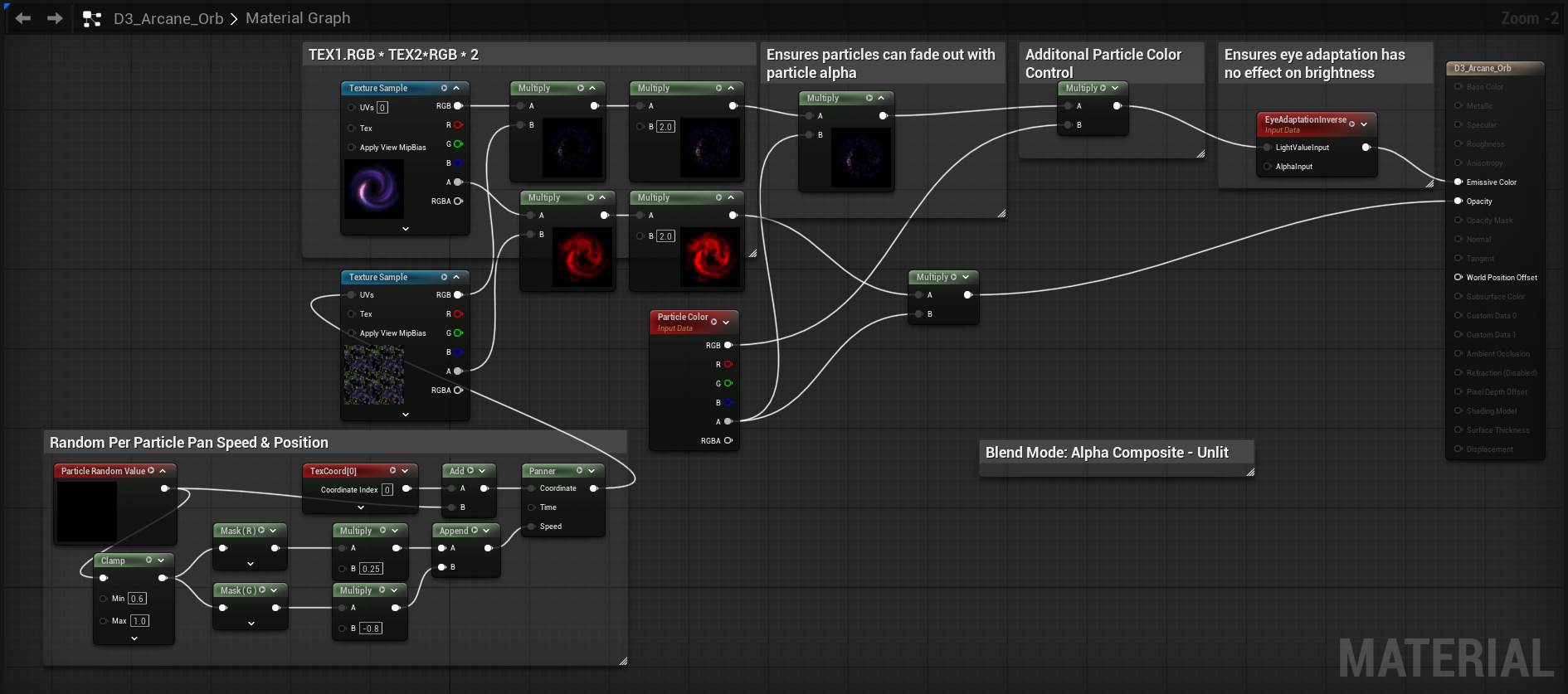
Fig. 17 - Galaxy Spiral Material in Unreal
You’ll notice in the galaxy material in Fig. 16 and 17 that we actually already have a starry nebula texture being shown. To create this texture,TEX2 as seen in Fig. 12, we simply need to generate a rough voronoi texture with the help of a UV Noise node. After running it through a few utility nodes such as Blur and Levels we can add the first layer of color to it. Funnily enough, I’ve never had to use the Color Adjust node until today. You’ll notice in the original texture that it has sections of white, blue, purple, green, and yellow, all in different locations with similar brightness values. This is something that you cannot accomplish procedurally with a single color gradient. So we use a couple of shapes as a mask to apply a Color Adjust which worked out far better than I anticipated. The final node before export is an Alpha Merge, where we use the original base noise as the alpha channel. This is all exported out as an SRGB texture to unreal.
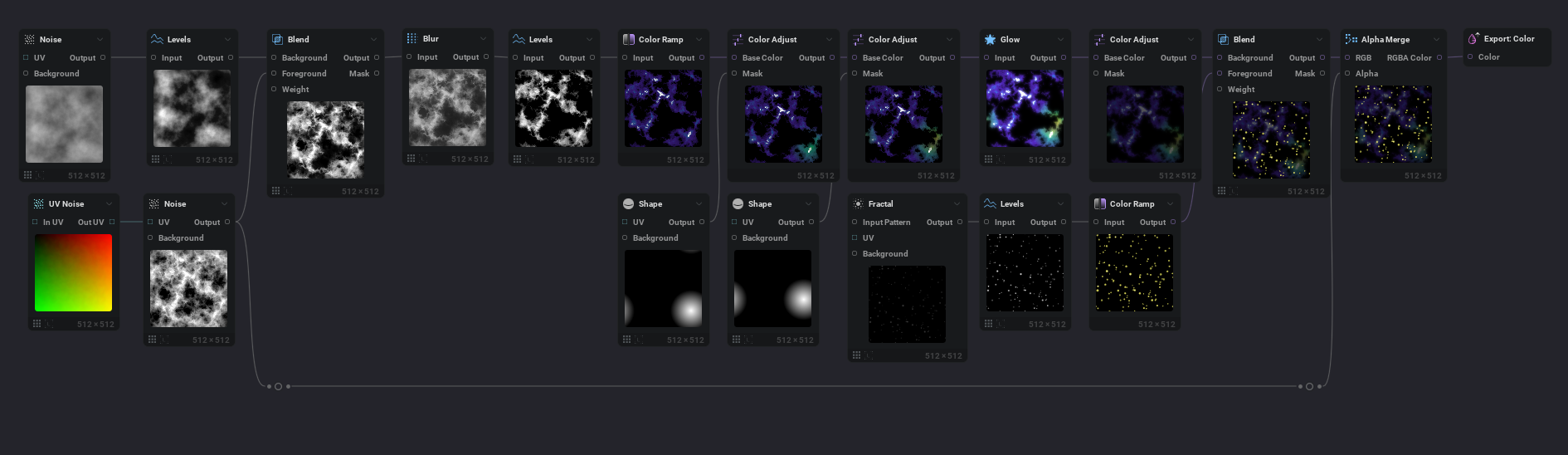
Fig. 18 - Our starry nebula texture can be created with a few noise nodes and color adjusts.
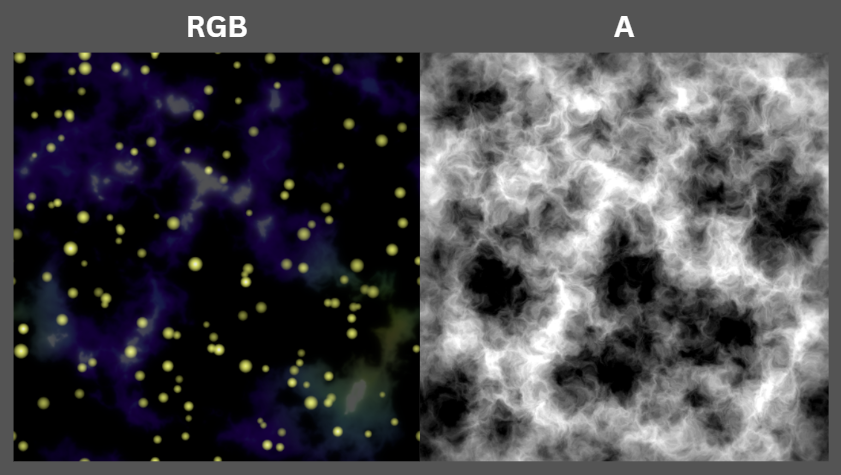
Fig. 19 - The final RGB and A channels of our starry Nebula Texture.
Putting It All Together With Niagara
Next up we need to put the material from Fig. 17 on a fewNiagara sprites. In Fig. 20, you can see the size of the sprites and their motion vs the end result for this layer of the particle system. This looks awesome for how incredibly simple it is.
Fig. 20 - On the left we see the wireframe of 10 sprites and on the right the material applied to the sprites.
Next up, we create a simpleNiagara system that spawns two glowing sprites with a fair amount of brightness and an Alpha Composite blending mode. I made sure to set the sort order for the center sprites to draw on top of the galaxy spiral at all times. To light the scene, I just threw in a point light. Final effect has a total of 12 particles at any given time, just like the reference.
Fig. 21 - My final version of the effect.
Wait! Fig. 21 isn’t true to the reference Nick! “In the reference the stars are flung out from the center, not sucked in..” ah I’m glad you noticed. Here’s a side by side comparison in Fig. 22 of outward panning stars vs inward stars in my final effect. I personally like inward, but the devs on D3 picked outward panning and that's dope! It do like how it reduces the overall motion and suspends more matter despite everything else moving so fast.
Fig. 22 - Different panning directions bode different results.
And finally, for posterity’s sake, here’s the material and texture creation for the glow. You may notice that it has an ever so slight shimmer or twinkle on the edges. I figured this is a good place to show how theScale by Mids can benefit you by increasing the mid values of the texture as seen in Fig. 23. The texture generation for the glow can be seen in Fig. 24.
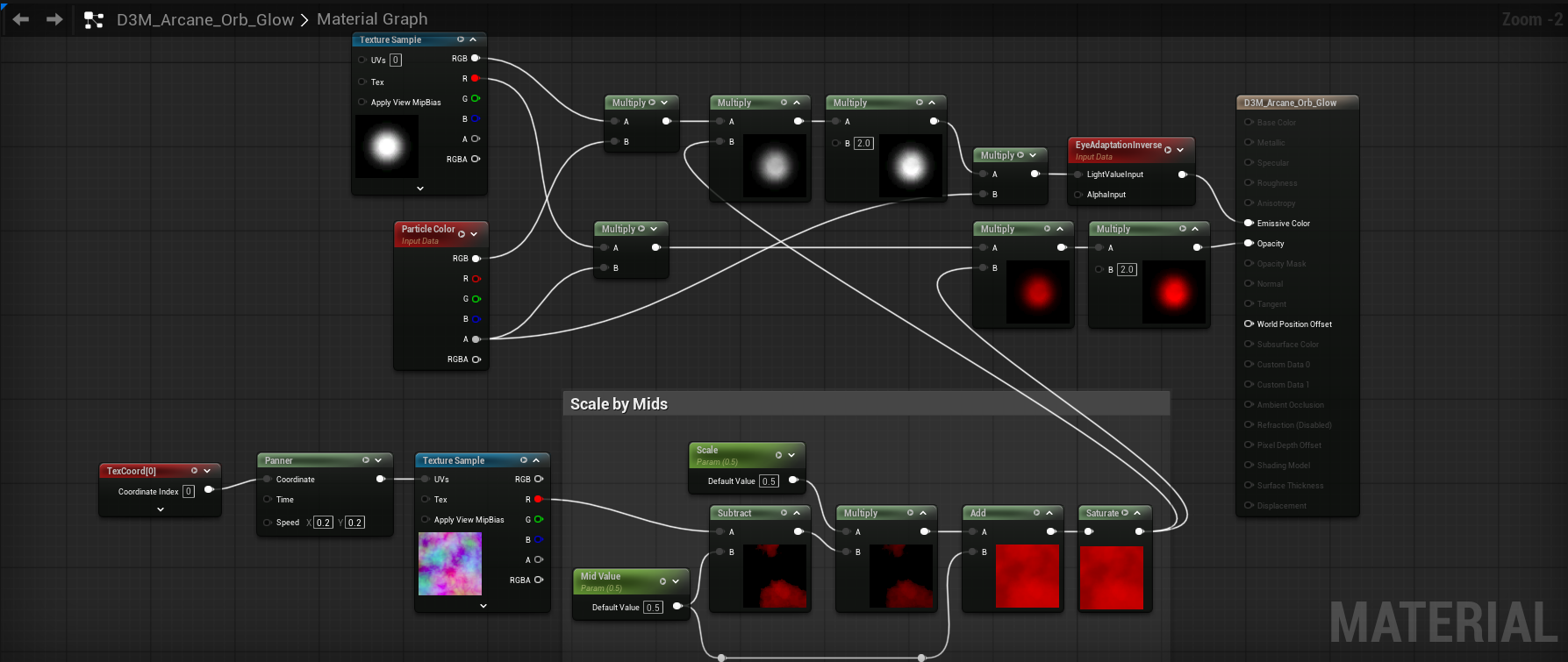
Fig. 23 - Center glow material for the Arcane Orb, complete with edge shimmer.
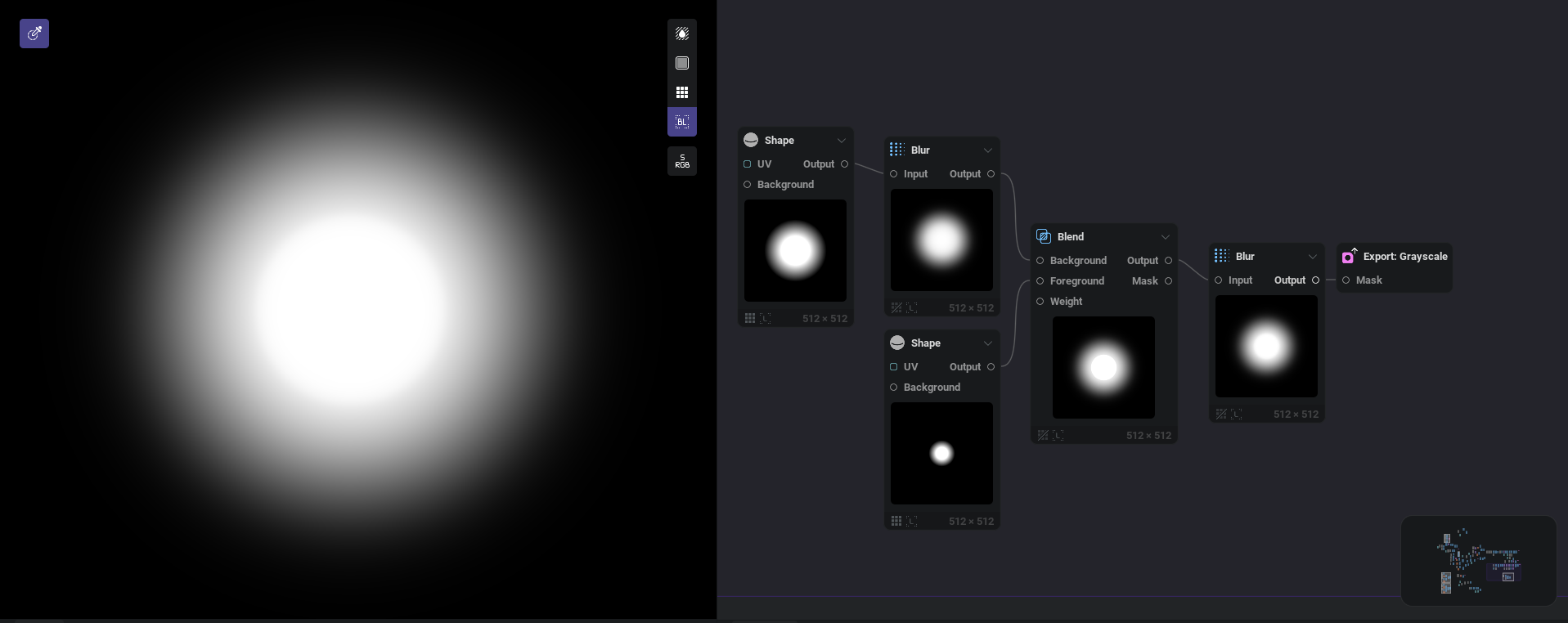
Fig. 24 - IlluGen graph for the glow texture.
All of this was rather quick to put together and recreate between IlluGen, and utilizing the easy techniques for D3. Lets hop into our next example.
Investigating D3’s Pseudo Volumetric Smoke
With us being the creators of EmberGen, nothing makes me happier than seeing a flipbook of a smoke sim in a game. Better yet, I love seeing properly implemented 6 point lighting for dynamically lit smoke. Diablo 3 did nothing with these techniques as far as I’m aware. What they did accomplish was fluffy, well lit smoke, with a ton of a never ending motion.
The D3 team achieved volumetric looking smoke by using what appears to be a hand painted gradient of colors going from bright (lit side) to dark (shadowed side) and using that for the color of the smoke. To see the textures go to the 7 second mark in Fig. 25. In the talk, Julian mentions how usually you would need a lot of sprite variations for hand painted light to work well, because you would easily be able to pick out patterns in painted pre-lit sprites. By having our alpha channel mask the color gradient per particle you don’t need a sprite sheet of variations because our randomized per particle motion does that for us.
A limitation is that you cannot rotate your smoke sprites significantly because the shadow needs to be on the bottom half of the smoke due to the suns location in the game. Diablo 3 benefits from having the same time of day throughout gameplay as far as I’m aware, and they benefit from having a mostly isometric camera system that is locked to a certain perspective. If the lighting is different in another level, they can just rotate the sprites a bit until they match the new lighting. We’ll break free of this static limitation later in our exploration into this lighting technique.
Fig. 25 - What we're recreating. Be sure to watch past 5 seconds as it shows the texture breakdown.
The equation used for the smoke isA = (Tex1.A * Tex2.A) * Tex3.A * 2 and I want to bring up an interesting observation I’ve had while experimenting with many different effects. In your material graph make sure that you aren’t overmultiplying your shape mask, which in this case is Tex1.A. If you have a simple setup that is Tex1.A * (Tex2.A * Tex3.A * 2) where Tex1.A is a mask and Tex2 and 3.A is Noise, you usually do not want to multiply the end result by another 2 because it may blow out your alpha channel in ways you weren’t expecting. You usually only want to multiply multiplied panning noises or colors by 2. In my glow material for the Arcane Orb, I did end up multiplying Mask * Noise * 2 because I wanted to ensure total brightness. In short, be intentional with the channels you are multiplying by 2. With that random observation aside, lets get on with recreating the smoke!
We’re going to use our original noise from the R channel of Fig 2. to drive the primary motion in our smoke. That leaves us with only one texture to create, and that’s Tex1 from Fig. 25. To start with, we’re going to create a very basic gradient without the artistic noise just to have a hard edged texture to test and visualize the lighting direction. Then we’re going to make a simple smoke mask and pack it into the Alpha channel.
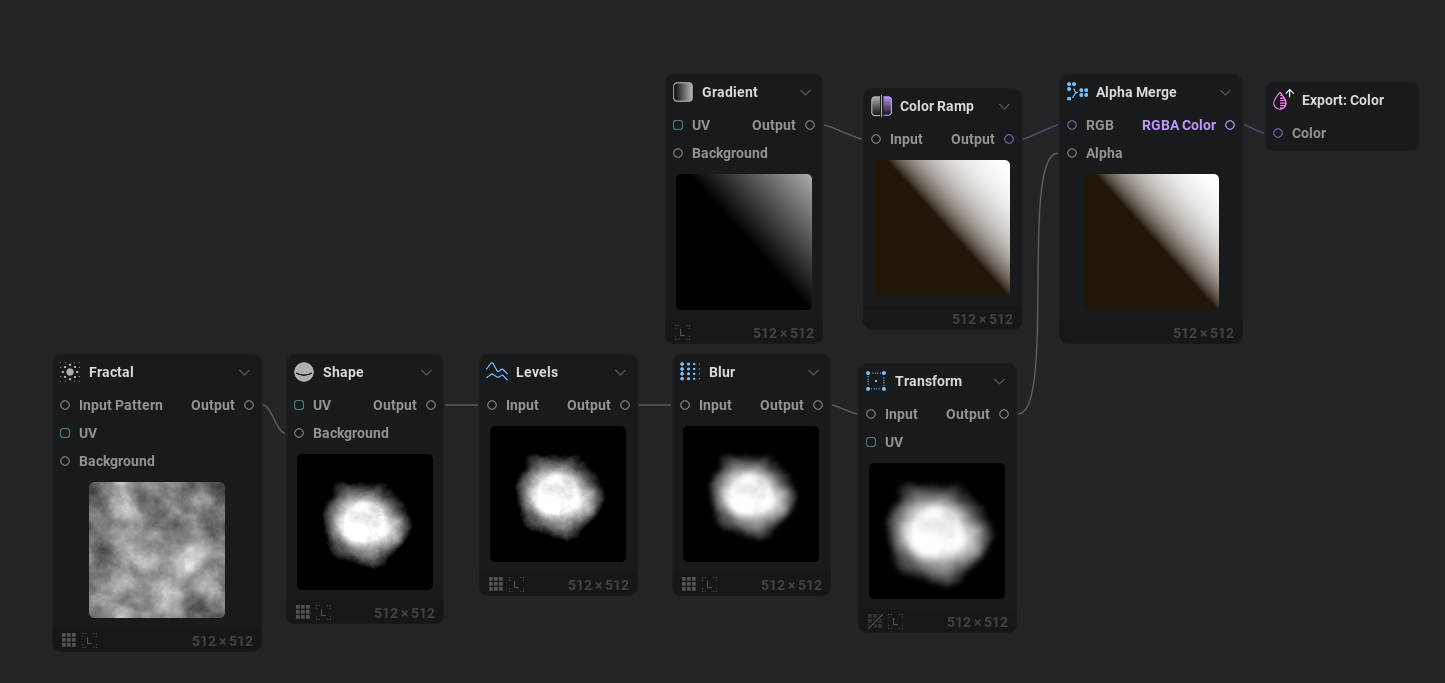
Fig. 26 - Simple hard edged gradient and smoke puff mask to start with.
Next, lets create our material in Unreal. The only major difference here compared to previous materials is that we are usingScale by Mids directly on Tex2.A to get a custom range out of it specifically. We aren’t using Alpha Composite shading here, this is just a basic Translucent Unlit material. The rest of the material is using the same multiplication math and particle randomization we’ve used elsewhere. Nice!
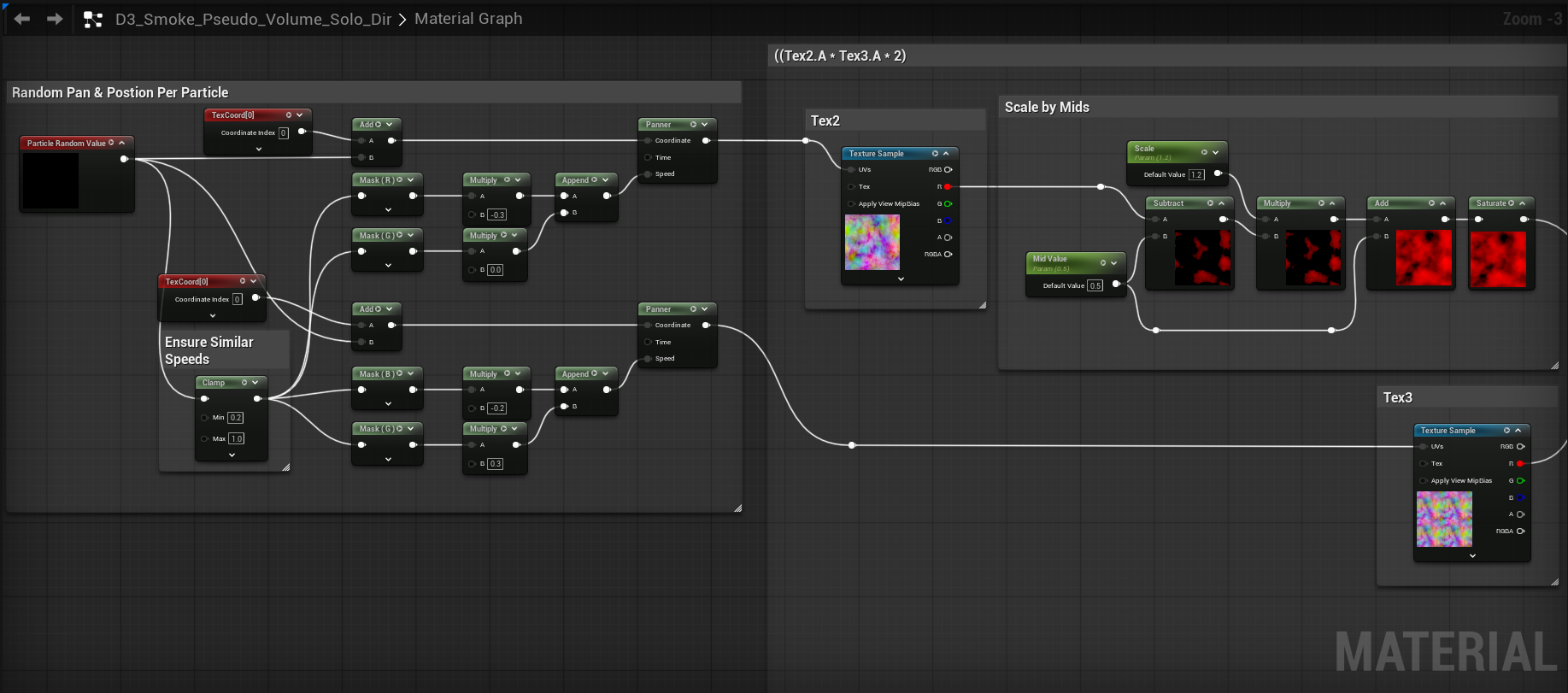
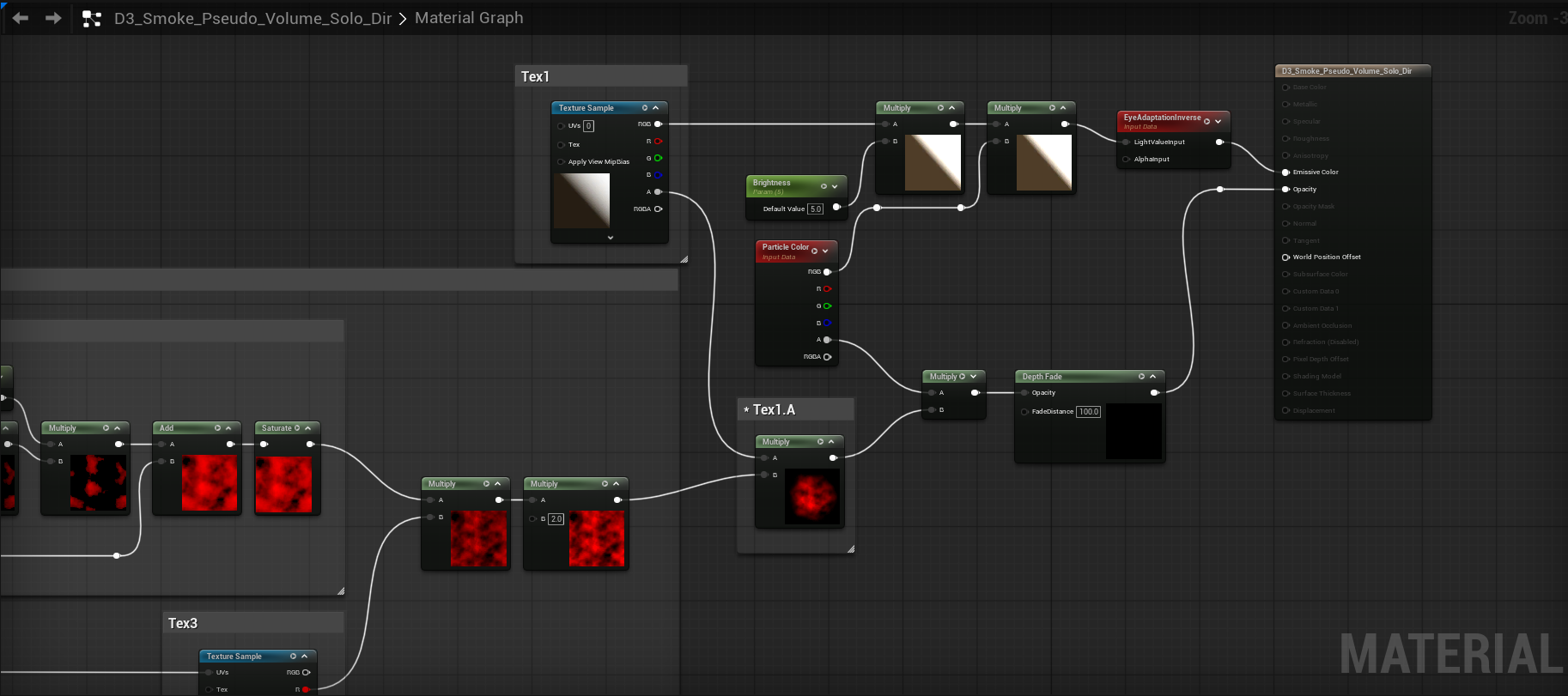
Fig. 27 - Material For Mimicking D3’s Pseudo Volumetric Shading.
Now lets create the Niagara system that’ll drive our smoke. In this case we have around 54 particles at any given time with very slight random rotation to help break up the location of our gradient. The reference had around 60 active particles and also used minor random rotations.
Fig. 28 - Niagara System with a basic smoke gradient.
This doesn’t look too bad! Now lets make a more natural looking gradient with some radial variance. The primary way we add radial variance is by distorting the texture with aUV Radial and then applying some additional noise to the darker areas in Fig. 29.
Fig. 29 - IlluGen material for a prettier gradient that matches the reference.
One great feature of IlluGen if you are trying to match the colors of a reference is our eyedropper tool for gradients. Just click where you want to start the gradient, drag across the pixels, then release when you’re done. This will then add keys to your gradient for you. I reversed the gradient and equalized the distance between gradient keys in Fig. 30.
Fig. 30 - IlluGen makes it easy to sample colors for gradients!
The result of this new gradient in Fig. 31 looks great! The motion isn’t quite a perfect match to what we saw in D3, but I think its close enough.
Fig. 31 - Reference matched gradient with a smoother falloff.
We could stop here and call it a day, because we’ve successfully achieved what they did in D3, but I would like to try taking this technique a little bit further. I was curious to know if its possible to still use a custom gradient for colors and shadowing, but also have it dynamically react to the suns position without much overhead.
Making Our Pseudo Volumetric Lit Smoke More Dynamic
The first thing I wanted to know is how does our D3 pseudo volume lighting compare to a default lit lighting mode? This shading model comes standard in Unreal. In the Unreal material editor I changed these details:
- Checked
Generate Spherical Particle Normals - Shading Model:
Default Lit - Lighting Mode:
Volumetric Directional - Changed my smoke color to be derived from particle color and plugged it into base color. No emissive, and no D3 color gradients.
See Fig. 32 for the results.
Fig. 32 - Default lit smoke with spherical normals, no D3 style color gradients used.
This doesn’t look too bad. It reacts to sunlight and direction and receives light from any other light in the scene. The issue I have with this is unlike the D3 method, it doesn’t allow me to control the color of the highlights and shadows of the volume we are trying to represent.
Orienting Our Gradient Towards The Sun
I’m going to revert back to our unlit mode D3 gradient based shader used in Fig. 31, but I’m going to add in a few nodes that orient the gradient towards the sun. I will add a disclaimer for what's to come: the method I use is crude and not perfect, I’m not a tech artist by trade so have limited knowledge on how to fix some of the issues ahead correctly. Luckily, Deathrey from the RTVFX discord server helped me find the correct solution in Fig. 33 to properly orient our texture towards the sun no matter where our camera was. I would encourage you to try both the incorrect and correct methods for texture orientation to see how they affect your particle lighting from different camera angles. In Fig. 34 we use an arrow texture to ensure this new function will orient our texture towards the sun.
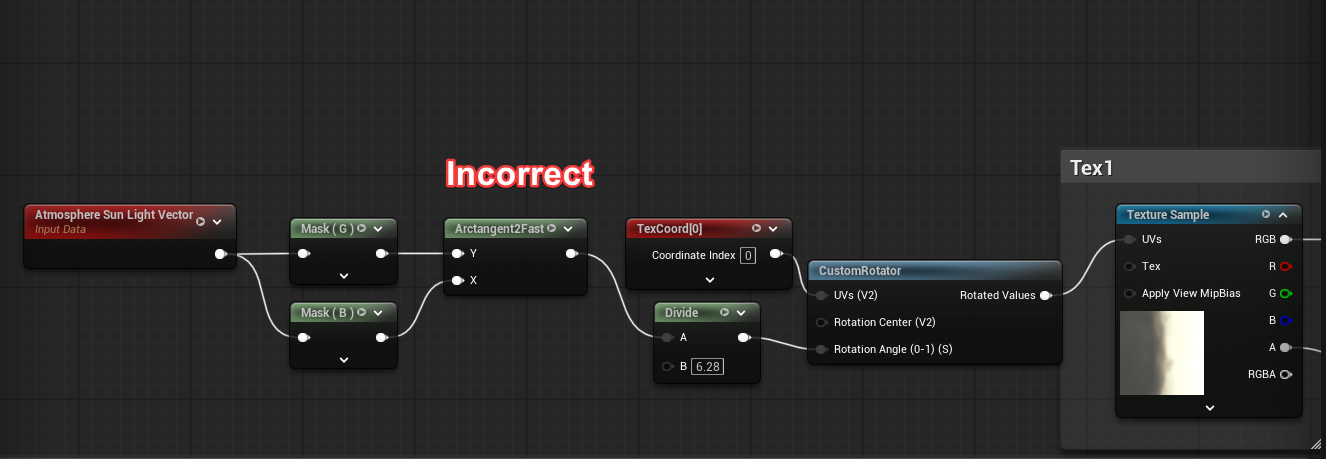
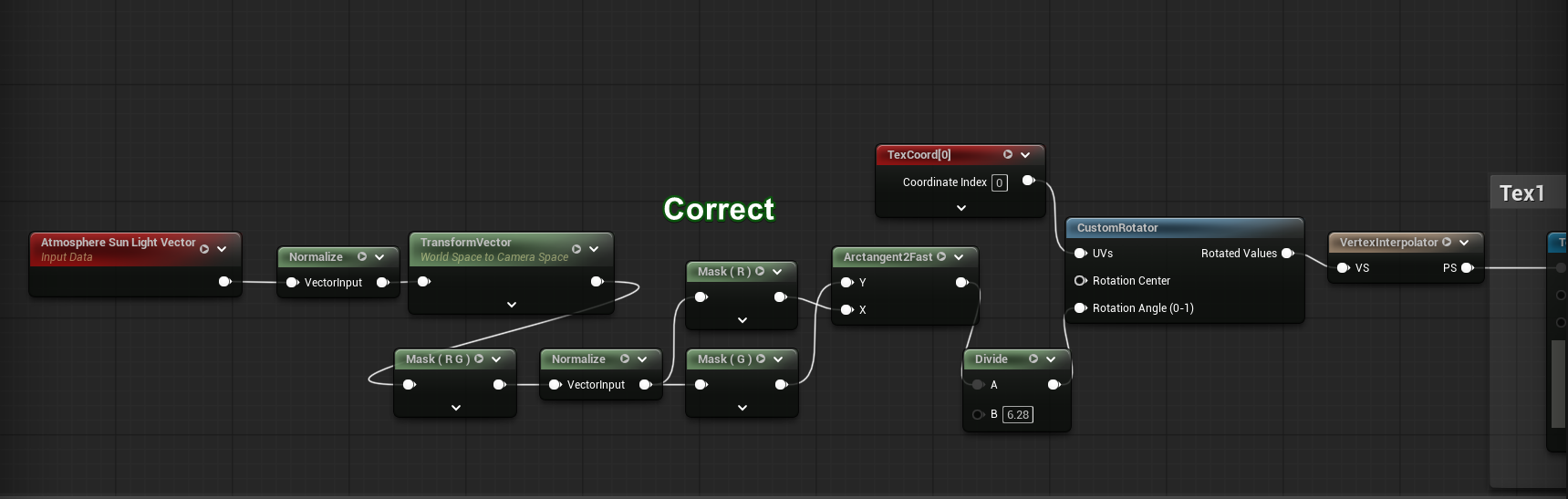
Fig. 33 - Incorrect being my first approach, Correct being my second approach as proposed by Deathrey.
Fig. 34 - With an arrow texture we can see that the particles do indeed point towards the sun.
Now lets replace our arrows and import a new gradient texture from IlluGen that rotated 45 degrees from the original D3 implementation as this sets up our gradient to be in the proper direction. In Fig. 35 we can see this in action. The color smudging present on the bricks and smoke as I change the sun position is from Unreal’sTSR implementation and its hideous, so I apologize for that. However, from most sun and camera angles the smoke seems to be properly lit.
Fig. 35 - Smoke plume adapting nicely to the sun position.
This is fantastic and already adds a lot of runway for further experimentation. Now that we know we can use color gradients for dynamically lit smoke, what if we sampled a real life dark smoke plume? This is a great way to get custom gradients in Fig. 36.
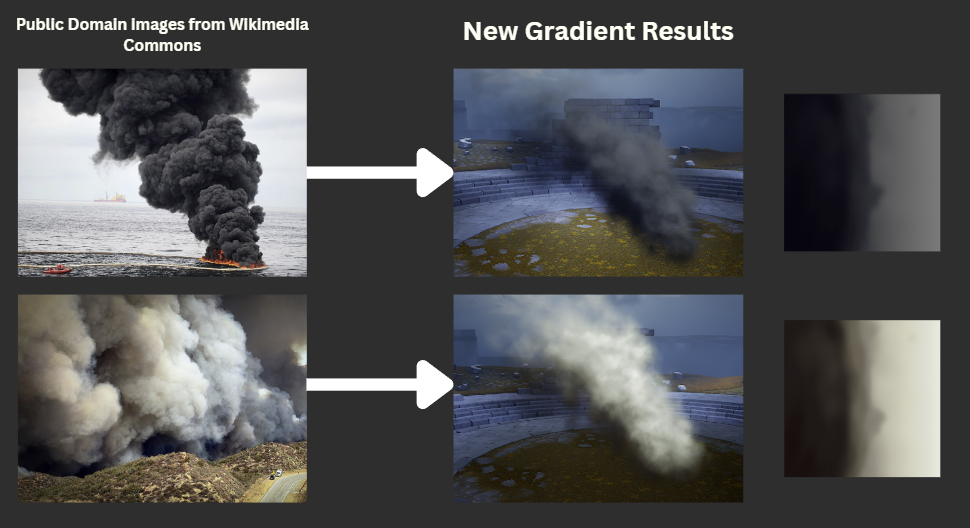
Fig. 36 - Custom smoke gradients from real life images.
Adding A Few More Features To Our Shader
By all accounts, having our gradient react to the sun position is probably where we should stop, because moving forward only causes more pain and issues to solve.. but alas a curious mind wants to at least try to add more lighting features. So lets proceed.
So there are two remaining features I’d like to add before calling this done. I would like the smoke to be able to accept color from point lights and the sun, and then I’d like to have rim lighting if the sun is behind our smoke. If we take what we had in Fig. 32 usingDefault Lit and Generate Spherical Normals and we enable that in our new material, Fig. 37, in theory we can have the best of both worlds. Unfortunately that’s not quite true out of the box for my levels post lighting settings.
Fig. 37 - Default Lit + Gradient based shading causes brightness issues.
Despite having an exposure correction node,Eye Adaptation Inverse, in our shader graph, the sun brightness in my particular scene still causes extremely bright spots to appear when in direct sunlight. You’ll notice that we have a cloud mask in our scene that pans across the sun to mimic sunrays piercing through a cloudy sky. When the sunlight appears, the brightness issues occur.
Due to my scenes bluish coloring you’ll also notice that even though we’re using a yellow tinted gradient, the default lit lighting model overrides quite a lot of our coloring. To fix the brightness to the best of my abilities I found a Directional Light Intensity parameter in the material settings and set it to 0.1. I also set our brightness parameter in the node graph to 0.5 in Fig. 38. This gives us the result in Fig. 39 which is at least a bit more acceptable for brightness, but as we can see yet another issue occurs where we get hard lines in some lighting conditions.
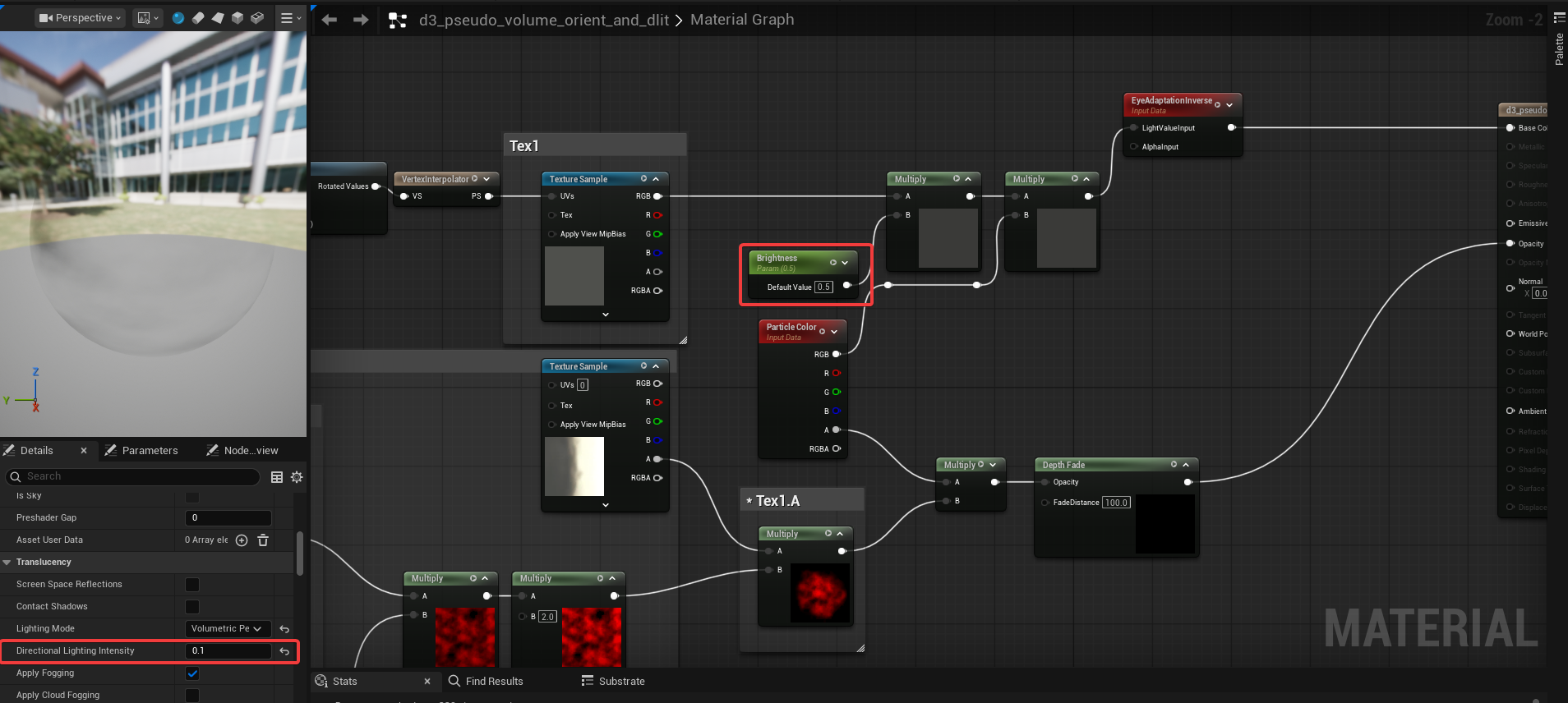
Fig. 38 - Updated brightness settings.
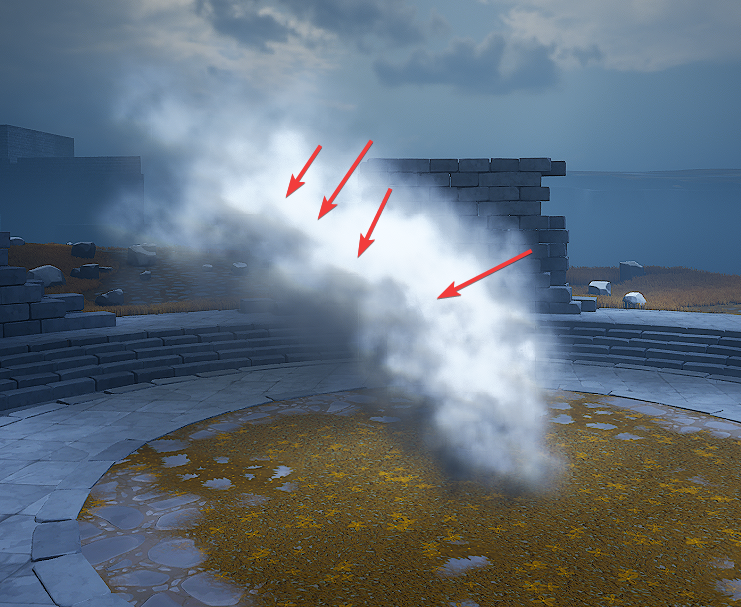
Fig. 39 - A bit more acceptable brightness, but now we see hard lines in our gradient.
We could continue to lower ourBrightness parameter until happy, but we’ll leave it here for now. In IlluGen I increased our Blur node radius to fix the harsh lines and then reimported the texture and that seems to fix it in Fig. 40.
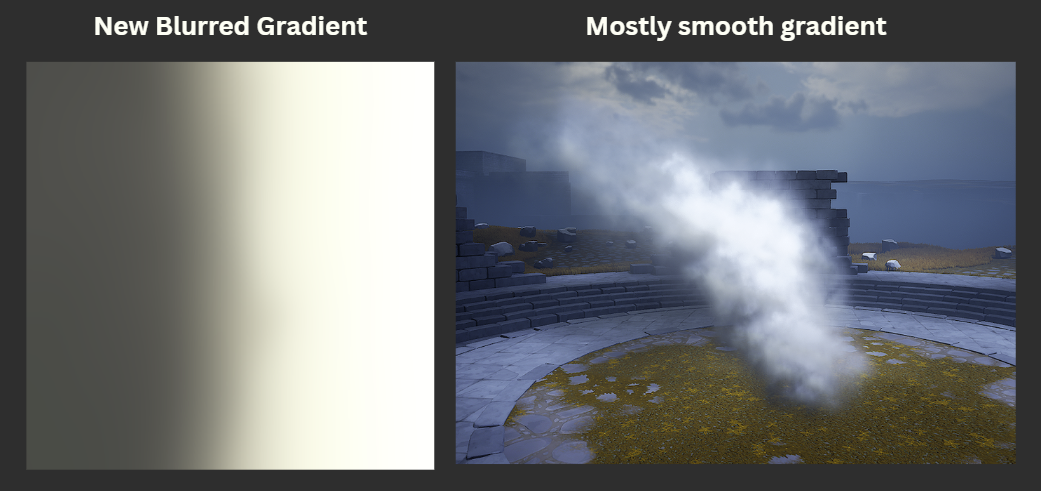
Fig. 40 - Most hard lines have disappeared, but we lose some radial UV coloring.
Next I wanted to see how point lights work in an environment without a sun in Fig. 41. If the point lights are too bright, you will have issues with colors being blown out still unfortunately. However this may just be due to other post process settings in our scene and is isolated to our level. In our final smoke I do end up testing it in a different level and did not have the same issues.
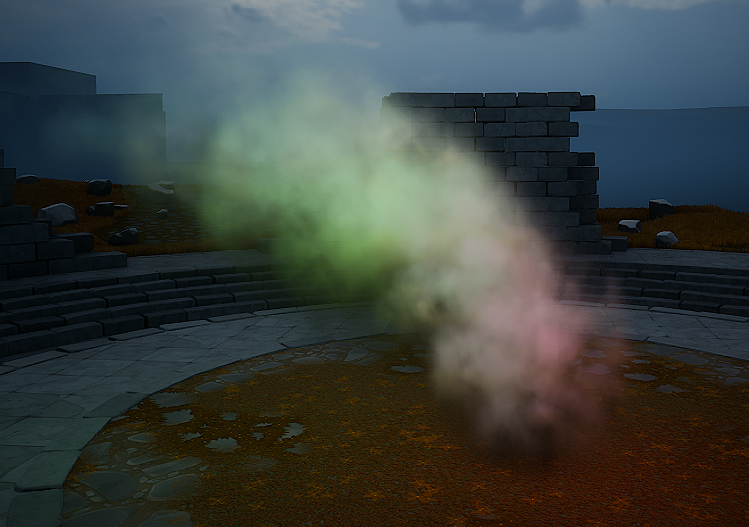
Fig. 41 - Just showing how point lights with no directional light look on this smoke.
Rim Lighting / Back Lighting
This is an optional feature that only shows up in certain lighting scenarios and I believe what we’re doing here is called rim lighting or back lighting. I’m not an expert on lighting and volumes, despite what we do as a company, but I think this could look nice and may at least spark some ideas for you on how you could take this to another level.
To achieve our rim lighting we will add the following nodes in Fig. 42 to our graph and plug that result in our Emissive channel. Because we are using default lit lighting, our smoke is now plugged into the base color and our emissive channel can be used by the rim lighting output.
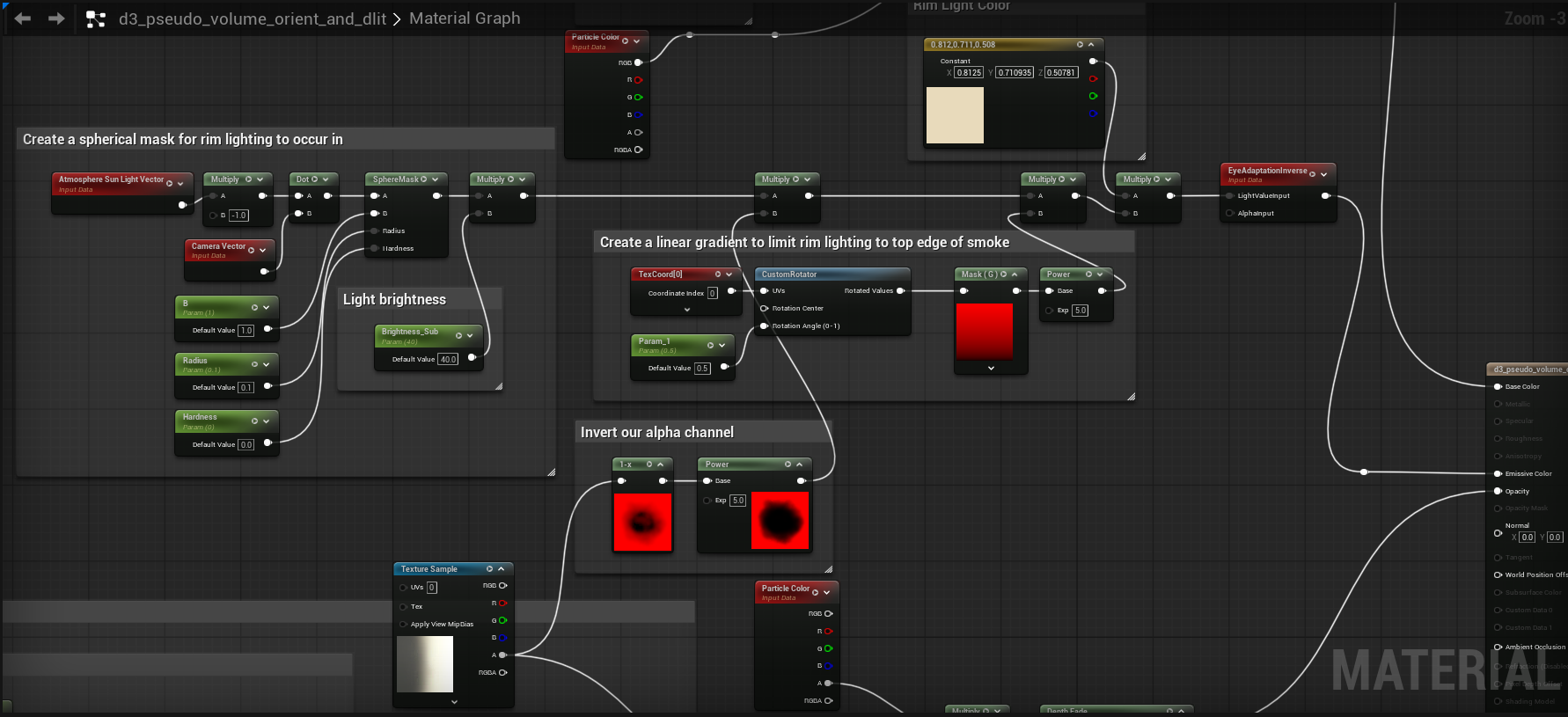
Fig. 42 - Rim Lighting/Backlighting Nodes
The final result can be seen below in Fig. 43, neat!
Fig. 43 - When the sun is behind the smoke, you can see additional lighting passing through on the top edges.
Putting It All Together
I decided to try the final smoke in a different environment. Some brightness parameters in the material needed to be tweaked to work with the new environments settings. Look at Fig. 44 to behold our directionally lit, color gradient controlled, sun color and point light accepting, rim lit/backlit smoke.
If it were me and I actually wanted to use the D3 technique for lighting smoke, I would probably stop at simply making the gradient rotate based on the sun direction. If the lighting colors need to change then I would simply load in a different gradient and have a way to instance my smoke plumes on a per level basis. Using the default lit shading mode in conjunction with the gradients tends to cause a lot of issues and I’m not sure how stable it would be in a game with numerous environments. This was a fun challenge trying to see how far I could expand on the technique and I hope you at least found it entertaining.
Fig. 44 - Our final smoke with all the bells and whistles.
My Closing Thoughts
Doing a deep dive into the 2013 Diablo 3 VFX talk was an interesting journey for me and was full of so many surprises and challenges. It truly challenged what I thought I knew and I picked up a lot of new skills in both IlluGen and Unreal along the way. I hope you learned something new and were inspired to give some of these techniques a shot in the games you’re working on. I would have loved to recreate more of the effects from the talk, or even implement what I’ve learned in brand new effects, but I’ve already spent around 65 hours investigating, writing, and implementing items for this article. I’ll be sure to use some of these techniques in my next articles. I’d like to give a big thanks to Julian Love for giving the talk that has inspired so many of us, and for taking the time to respond to my questions and give input on how to do this in a modern engine.
This is my second article for my new news letter "Gotta be less than 2ms". The focus of my newsletter is on creating real-time vfx for games. If you would like to subscribe to the email list for this particular news letter, please do so below.
Files: https://jangafx.com/downloads/res/D3_Vfx_Article_IlluGen.zip
Heavier Watching & Readings:
- Julian’s Diablo 3 VFX GDC Talk: https://gdcvault.com/play/1017660/Technical-Artist-Bootcamp-The-VFX
- Alpha Composite Blending In UE/Unity: https://docs.google.com/document/d/1C29okH23ZxVkXokDxBr2naJ_mfkXVJHabeGRloLGC28/edit?tab=t.0#heading=h.4shkbmvwyd2q

No comments yet.
Be the first to share your thoughts!